Products
Products, while optional when creating shipments, offer exceptional utility in optimizing your logistics operations. By maintaining a list of products and their details, you can streamline the shipment creation process by associating a product code with each shipment.
Creating a Product
To create a product:
- Access the 'Products' tab located on the left side of your user interface.
- Choose 'Create New Product' to initiate the product creation process.
- Edit the product details as necessary, ensuring all required fields are meticulously completed.
- Click 'Finalize' to confirm and save the product information.
Here is an example of a properly filled product to serve as a reference:
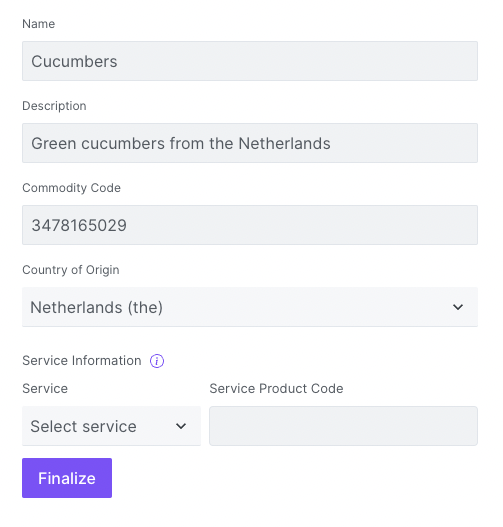
You can adjust the content as necessary and add the actual example product details and a practical reference for your users.
Once administrators have verified a product, it becomes readily available for use in your API requests.
Duplicating a Product
From the 'Products' section, you can also duplicate a product for ease of use or to create similar entries. To duplicate a product, locate the product you want to duplicate, then click the 'Duplicate' button.
Deleting a Product
If you need to remove a product for any reason, it's a straightforward process. Locate the product you want to delete, then click the 'Delete' button. Please exercise caution when deleting products, as this action is irreversible.
Retrieving a Paginated List of Products
If you want to get a paginated list of your products, you can use the following endpoint: 'endpoint'. This endpoint allows you to specify the customer organization, page size, and page number. The default values for page size and page number are 25 and 1, respectively. Products are ordered by the date of creation in descending order (most recent first).
If you are an Intermediary organization, you can request to see the list of products of your clients by entering their organization domain.
Products of clients can only be accessed by Intermediary organizations. If a non-Intermediary organization attempts to access the products of another organization, a status code 401 (Unauthorized) will be returned.
Here is an example API request for retrieving products for my organization with a page size of 25 and the first page:
GET https://api.quayconnect.io/v2/shipments/products
Headers:
Authorization: Bearer your-access-token